At the time of writing this article, Microsoft has already rolled out the modern experience to all the lists and libraries.
In the old classic sites, there was a possibility to change the the title of Wiki pages and now that is almost gone, but still there is a way to change the title.
Follow the steps below to change the wiki page title.
In the SitePages/Pages switch to “Return to classic SharePoint” at the bottom left.
Edit the views of “By Author” or “All Pages”.
Add the column “Title”.
Save the changes to the view.
Go back to the view.
Click on the ribbon and expand tab “Library”.
Click on the “Quick Edit”.
Make the changes to the respective page’s title column.
Exit “Quick Edit” to save the changes.
Do please note that for now this works but not sure how long Microsoft will keep this option open.
Sometimes we require to deploy SharePoint apps to a development site collection instead of tenant app catalogue. During those scenarios the following PowerShell command can be used to enable the app catalogue at site collection level.
Please note that you will require SharePoint Online Management Shell for this PowerShell to work. Please refer here for installation.
Enabling site collection app catalogue
Connect-SPOService -Url https://yourtenant-admin.sharepoint.com

# Reference of the site collection where the site collection app catalogue should reside
$site = Get-SPOSite https://yourtenant.sharepoint.com/sites/yoursitecollection

# Create app catalogue in the site collection
Add-SPOSiteCollectionAppCatalog -Site $site
Disabling site collection app catalogue
Connect-SPOService -Url https://yourtenant-admin.sharepoint.com

# Reference of the site collection where the site collection app catalogue should reside
$site = Get-SPOSite https://yourtenant.sharepoint.com/sites/yoursitecollection

# Remove app catalogue from the site collection
Remove-SPOSiteCollectionAppCatalog -Site $site
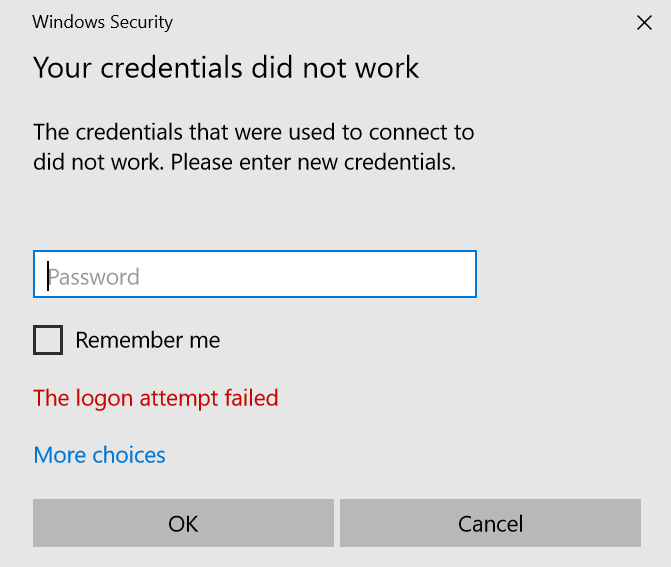
I’m trying to login to my remote PC and I get the error “Logon attempt failed”.
The following are the various user IDs I tried and none of them worked.
user@domain.com
AzureAD\user@domain.com
AzureAD\user
Solution
Save an RDP connection as file with parameters like name of the PC.
Open the RDP file using a text editor like notepad.
Modify the entry “authentication level” to “authentication level:i:0”
Make sure the “Allow connections only from computers running Remote Desktop with Network Level Authentication” is unchecked in the remote machine’s settings.
Add the entry “enablecredsspsupport:i:0”.
Now save the file.
Run the RDP file and it should connect to remote machine and show you the login screen of the remote machine
Type in the username as AzureAD\user@domain.com
Password as login password and not the Windows PIN.
SharePoint’s modern experience web parts is an easy and fast way to bring content to the viewer. But at the same time it’s not as configurable or as exhaustive as it is when compared to classic experience web parts.
The following URL shows some of the modern web part equivalents of classic web parts. Please note that these are not a 1:1 matching, instead they have similar functionalities.
Following is the code which quickly prints them out in a table. Just add this code to a script editor web-part.
Please make sure the URL is updated based on your site URL.
 At the time of writing this article, Microsoft has already rolled out the modern experience to all the lists and libraries.