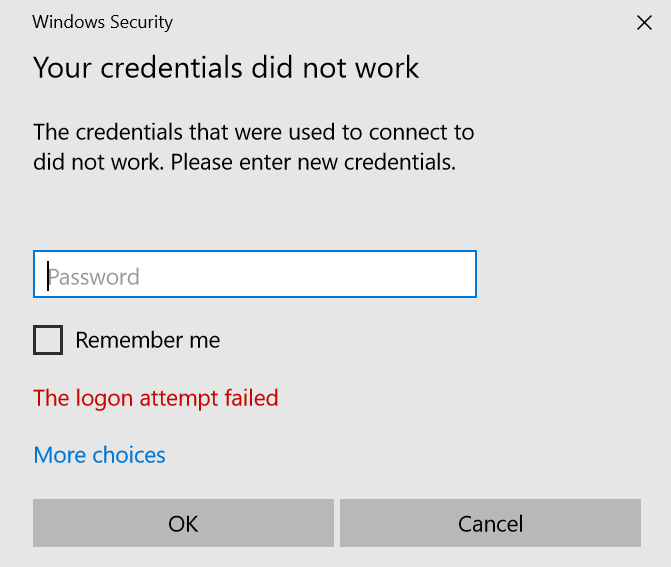
When configuring Thunderbird with Outlook 365 account, the password fails when using IMAP account type.
I use multi factor authentication and hence this is little difficult than using plain old password. The following configuration is the recommended method across almost all articles in the Internet, but still the password will fail. There is a solution which I came across in the forums, which worked for me and I’m documenting it here.
IMAP configuration
Incoming server configuration
outlook.office365.com
SSL/TLS
Port 993
OAuth2
Full email address as username
SMTP server configuration
smtp.office365.com
STARTTLS
Port 587
Full email address as username
User configuration at Microsoft Admin Center
Go to tenant admin center. The URL at the time of writing this article is https://admin.microsoft.com.
Go to Users > Active users.
Click/press on the user who has get the incorrect password error.
In the properties panel, click/press the “Mail” tab.
Under the “Email apps” section, click the link “Manage email apps”.
Look at the check box “Authenticated SMTP”.
Check it if not already checked. If already checked, un check it, press save changes, follow the above steps and check it again.
Finally save the changes.
Wait for some 5 to 15 minutes.
Now try adding the account in Thunderbird and most probably this should resolve the issue.
For me the app password didn’t work but the above with OAuth worked!
The following script helps to do the same for multiple URLs. All you need is a text file with OneDrive URL per line and it will provide output in a csv file.
I’m trying to login to my remote PC and I get the error “Logon attempt failed”.
The following are the various user IDs I tried and none of them worked.
user@domain.com
AzureAD\user@domain.com
AzureAD\user
Solution
Save an RDP connection as file with parameters like name of the PC.
Open the RDP file using a text editor like notepad.
Modify the entry “authentication level” to “authentication level:i:0”
Make sure the “Allow connections only from computers running Remote Desktop with Network Level Authentication” is unchecked in the remote machine’s settings.
Add the entry “enablecredsspsupport:i:0”.
Now save the file.
Run the RDP file and it should connect to remote machine and show you the login screen of the remote machine
Type in the username as AzureAD\user@domain.com
Password as login password and not the Windows PIN.
Recently when I tried to add my SharePoint Online (Office 365) site in SharePoint Designer 2013, the login page would repeatedly give the error “the user id or password is incorrect”.
the user id or password is incorrect
I tried both with my domain account and onmicrosoft.com account and was making sure I chose “Work account” when prompted and still it didn’t work.
Then I realised that the multi factor authentication has been enabled recently.
Use “App Password” in SharePoint Designer login page when multi factor authentication is enabled.
So I created an app password and tried logging in and it worked.
The web based login page rendered within the designer’s doesn’t highlight or warn you if you are using multi factored authentication or app specific password
You can learn more about creating the app password here.
 One of the SharePoint Online administrator of the customer I work with wanted to know the space used by a business user’s private OneDrive.